



Community Operations Tools Overview: How to Effectively Use Telegram & Discord Management Tools
TechFlow Selected TechFlow Selected
Community Operations Tools Overview: How to Effectively Use Telegram & Discord Management Tools
For Web3 projects, the importance of community is self-evident, and the success or failure of a project is closely tied to community building.
 Navigating Web3 tides with focused insights
Source: Pixel Dinosaur Club
Written by: wuxian.bit, Rust, TJ, Zolo
For Web3 projects, the importance of community is self-evident—project success is closely tied to community building.
When it comes to Web3 communities, most projects focus their operations on two main platforms: Telegram and Discord.
To effectively manage communities on these platforms, the first step is understanding and leveraging native platform tools.
Currently, there are numerous operational tools and bots available for both Telegram and Discord. However, they vary widely in type and functionality. This article aims to curate and review commonly used tools, offering basic usage guides to help every community builder find useful references.
This collaborative article was made possible through research and organization by members wuxian.bit, Rust, TJ, and Zolo from the Web3 MKT community Pixel Dinosaur. The article is divided into two parts: an overview of Telegram tools and an overview of Discord tools. We will also host events this week to explore effective community tools together—everyone is welcome to join.
I. Telegram Tools: Keep It Simple
Telegram is often associated with two impressions:
- Too many spam ads
- Everything Telegram has, Discord also has
Therefore, within the Web3 space, Telegram’s role has gradually evolved into:
- A lightweight option for community management
- A tool for personal networking and business communication (a replacement for WeChat)
Given this context, Telegram tools are relatively simpler than those on Discord. Two tools dominate usage: Rose & Combot. These cover nearly all essential operational functions.
-
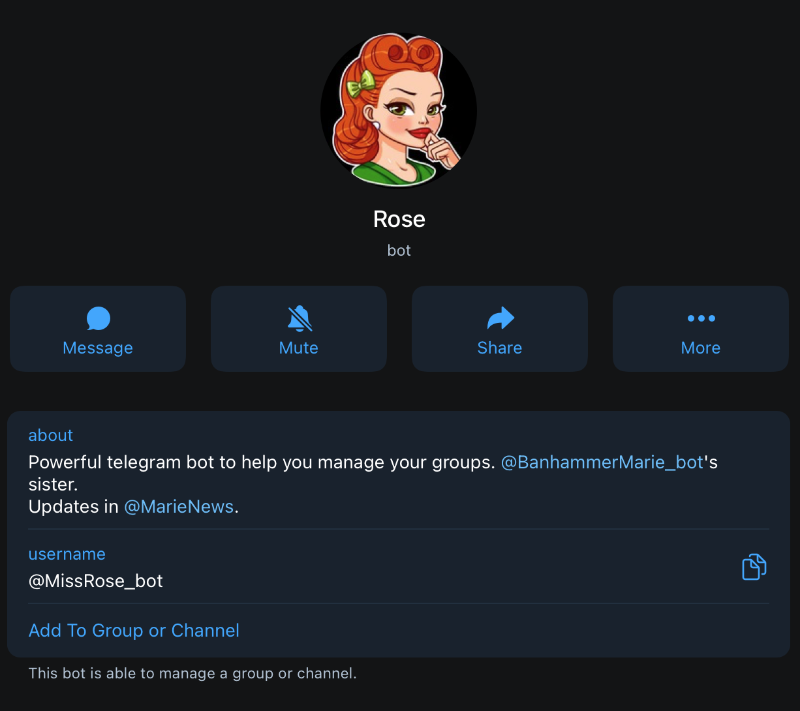
Rose: Command-based with full operational capabilities
If you're just starting your Telegram community and don't need complex features, Rose should be your first choice. It supports essential functions such as member onboarding, auto-replies, and chat settings—all configurable via commands directly in the desktop interface.
Below we introduce several key functions and setup methods:
-
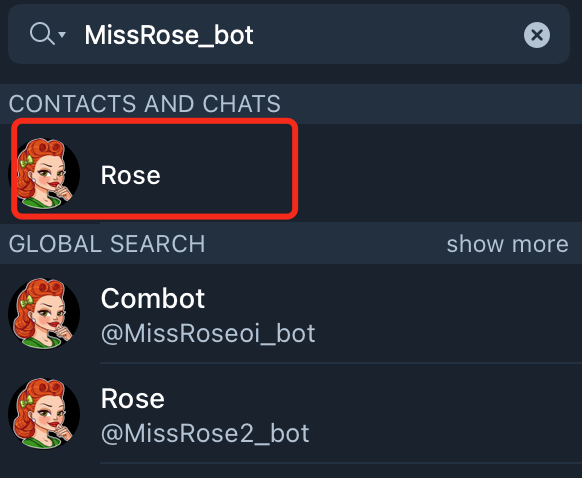
Add the Rose Bot: First, add Rose to your group and set it as an "administrator". Make sure to use the correct ID: @MissRose_bot
-
Member Onboarding Management: Prevent bots from joining by enabling entry verification.
-
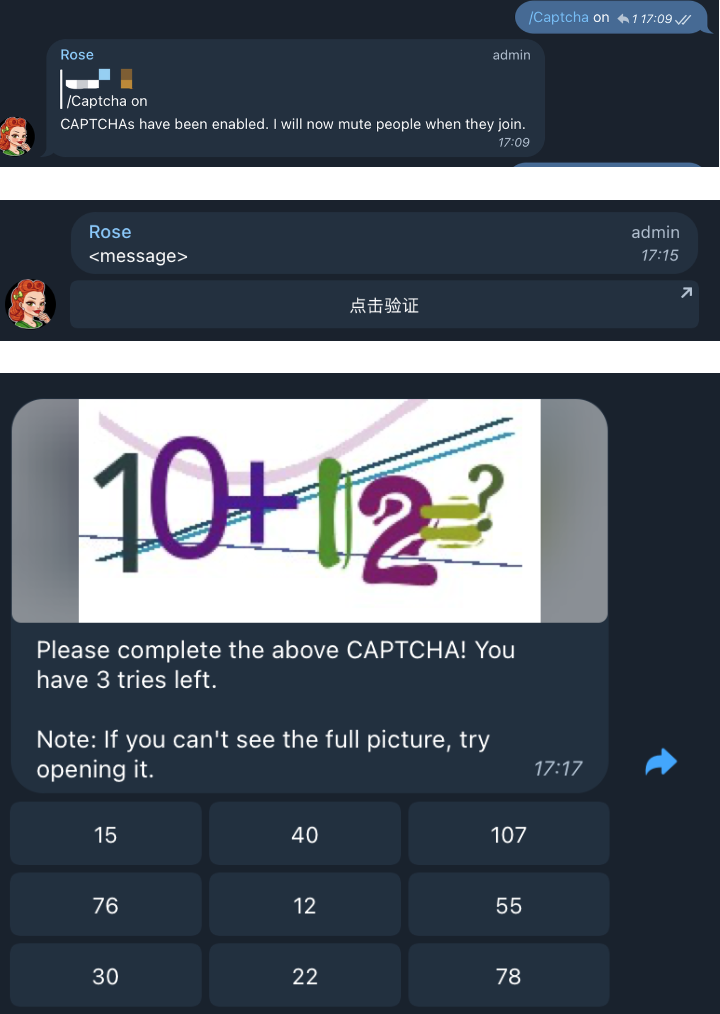
Enable CAPTCHA:
/captcha on -
Set CAPTCHA button text:
/setcaptchatext Click to Verify. By default, Rose requires new members to click a button to verify. Button text can be customized. -
Set verification method:
/captchamode math. Besides clicking, for enhanced security, choose text or math verification. Rose will DM new users; only after completing verification can they begin chatting.
-
-
Set Auto-Replies:
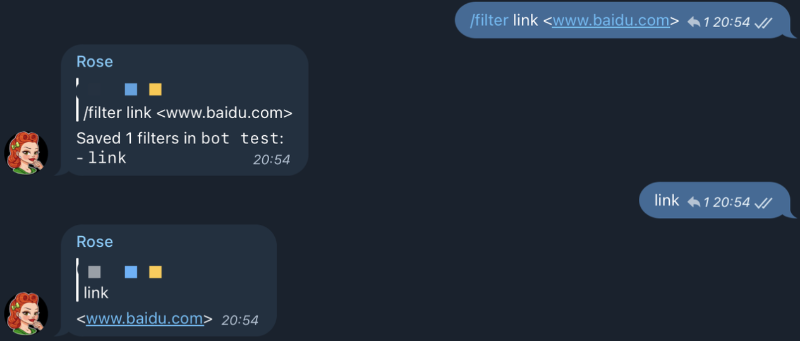
/filter <word> <reply>. This is widely used to reduce repetitive replies from admins. In addition to Q&A setups, you can trigger automatic responses based on keywords.wordis your keyword,<reply>is the response message. Example:
-
Restrict Images/Links:
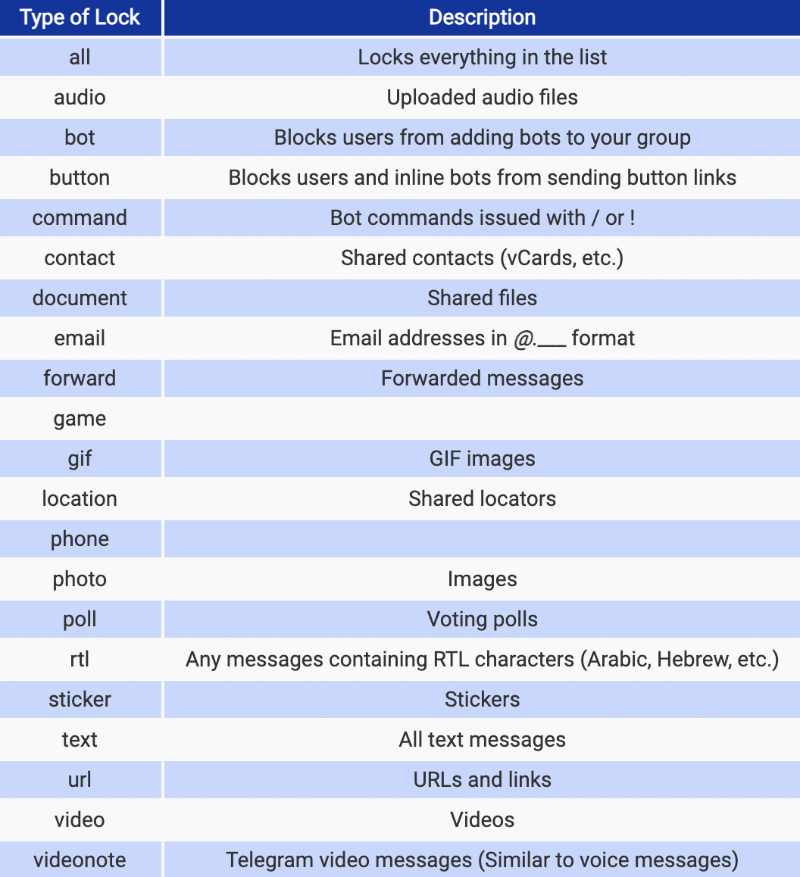
/lock <locktype>. To prevent image or link spam, lock specific content types—including emojis. Supported lock types include:
Rose offers additional features like welcome messages and limiting posting frequency. Due to space constraints, we've covered only core and frequently used functions. For more details, visit: https://missrose.org/guide/getting-started/
-
Combot: Full dashboard interface, advanced management tool
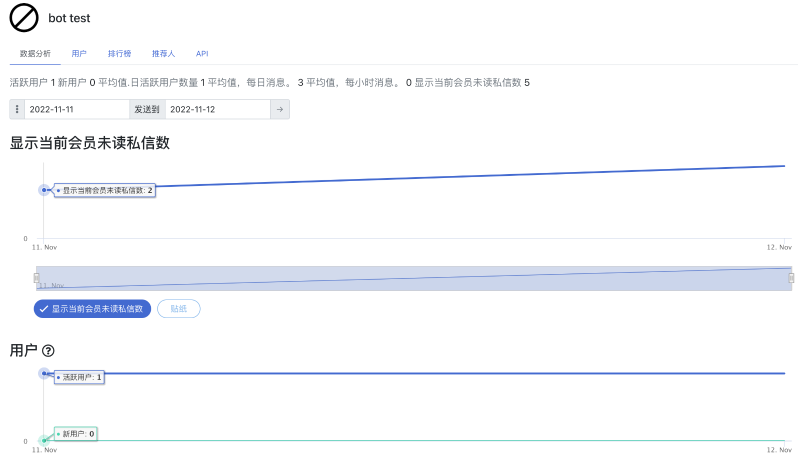
Unlike Rose, which operates entirely within Telegram, Combot provides a standalone backend with a user-friendly interface for managing your Telegram group. It also offers analytics such as user activity data,积分 assignment, and engagement tracking.
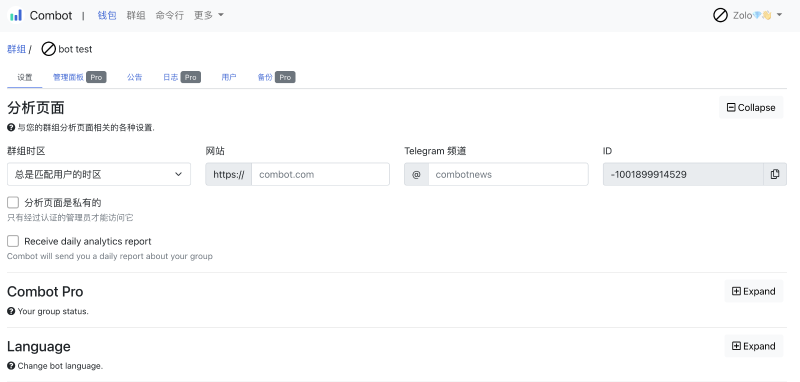
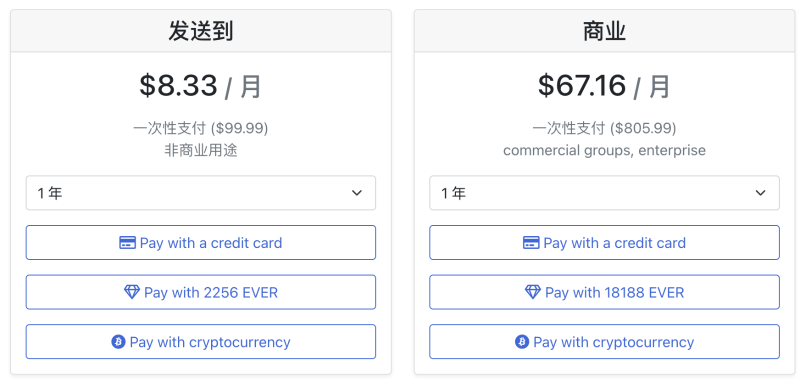
Combot is a well-commercialized tool offering paid premium features such as custom logos. They also provide tailored services for clients, including Binance and Tron.

If you prefer a visual dashboard for community management and deeper insights into engagement metrics, Combot is an excellent advanced option.
Below are key features and setup steps:
-
Setup and Login: Add @combot to your group and grant admin rights. Ensure correct bot ID: @combot.
-
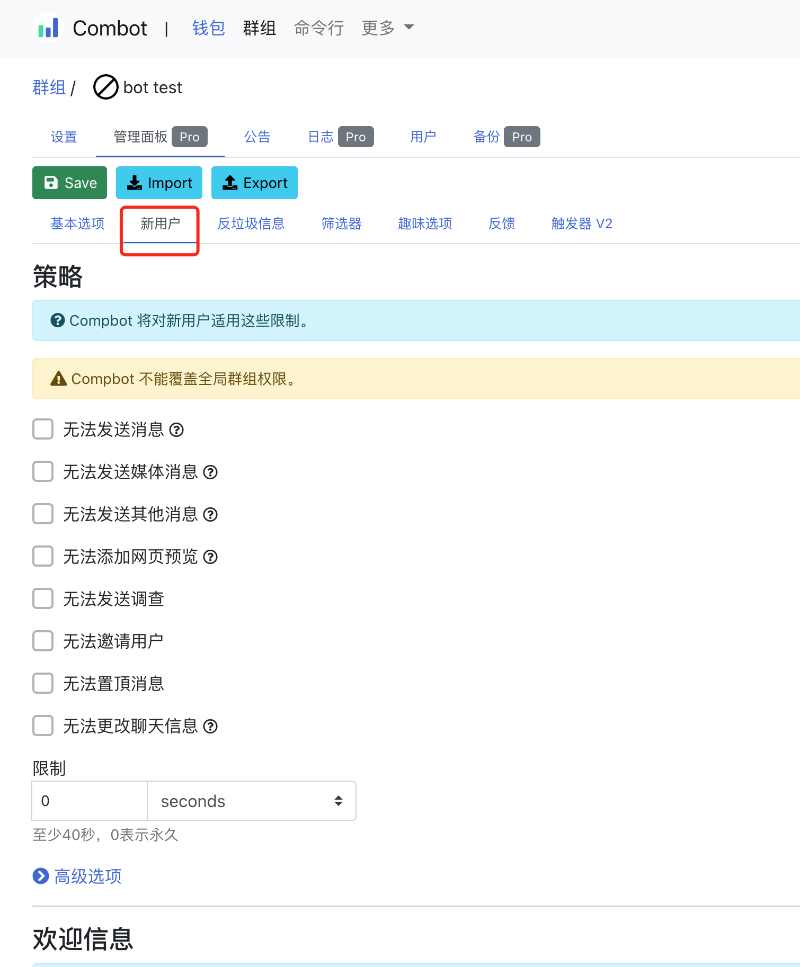
Management Panel: Instead of using complex commands, configure rules via the web-based "Management Panel," which offers a clean UI for setting welcome messages, entry verification, and more.
-
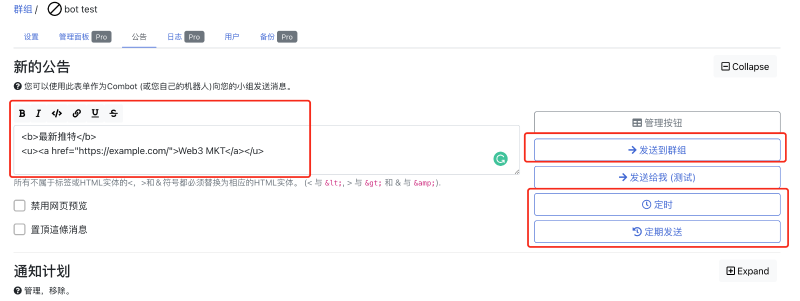
Post Announcements: Use the dashboard to create announcements with rich formatting (bold, links) and schedule delivery times.
-
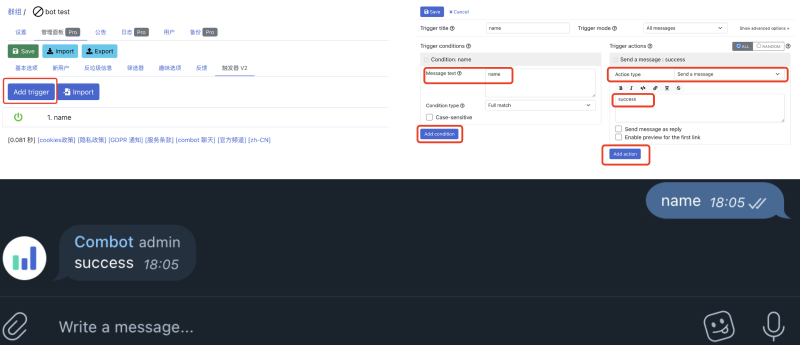
Auto-Replies: More advanced than Rose, Combot allows flexible configuration under
Management Panel → Triggers v2.
-
User Engagement: Easily view user activity levels and积分 status to identify active members or detect silent newcomers.
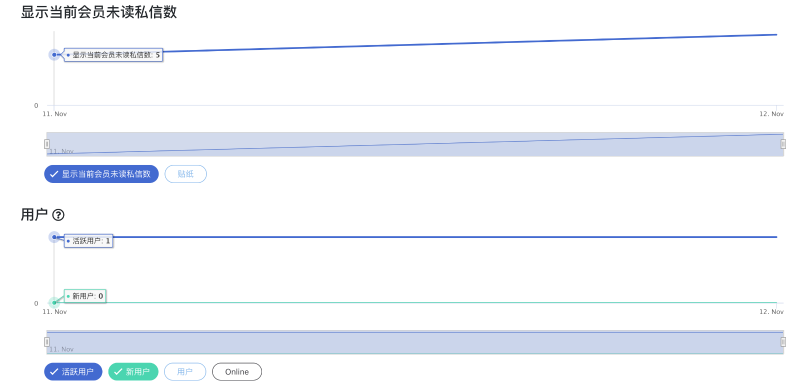
Combot supports some command-line configurations and offers greater flexibility and systemization than Rose. It can even integrate with CoinGecko for crypto price quotes. For heavier operational needs, consider Combot. As a SaaS product, Combot also has paid tiers unlocking additional features. Learn more at: https://combot.org/
-
Other Small Tools
There are many other Telegram tools. The above represent the most popular and fully featured bots. You may also use @shieldy_bot or @ProtectronBot specifically for banning and filtering spam.
II. Discord Tools: One for All
Compared to Telegram, Discord offers far richer functionality and a wide selection of bots, making it the primary platform for most project teams. For a full list of supported Discord bots, check the official Bots Application Directory or browse https://top.gg/, which hosts reliable and secure options.
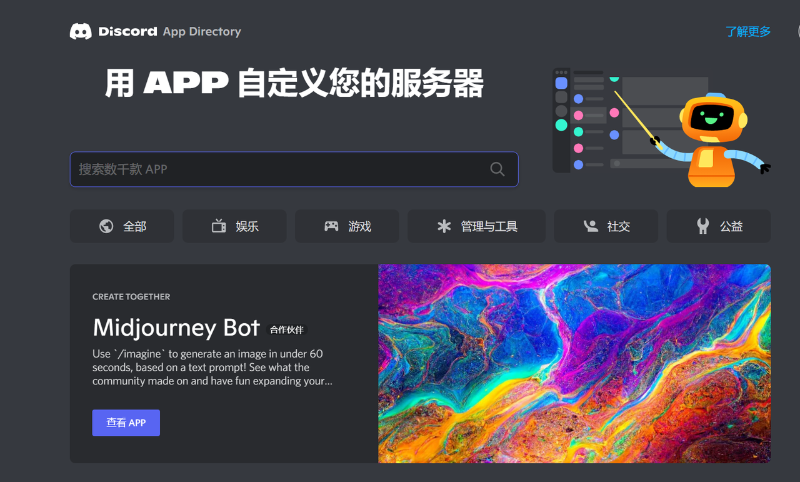
Due to the abundance of Discord tools, we’ll recommend them by category based on our operational experience. Space limits prevent covering every tool—we’ve selected the most impactful ones. A comprehensive tool map is provided at the end.
All-in-One Tools
Mee6
Mee6—recognized by its simple blue smiley face—is visible across countless Discord servers. It provides extensive management services and is an indispensable assistant for community managers. If you run a Discord server, Mee6 is a must-have.

Mee6 offers a broad range of features. Below we highlight functionalities ideal for early-stage communities.
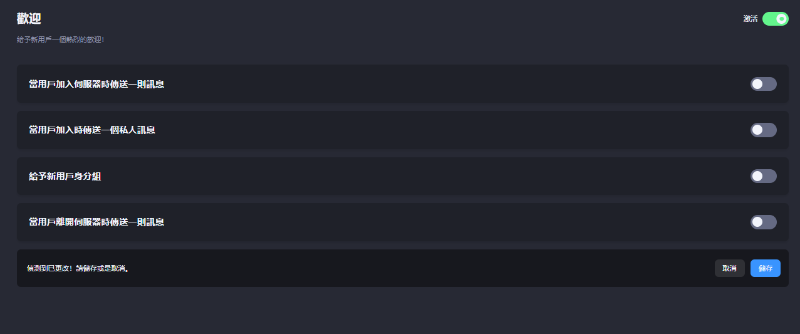
1. Welcome Features
-
Send a custom welcome message to new members in a designated channel;
-
Send a private DM welcome message to new users;
-
Assign a default role to new users;
-
Send a message when a user leaves the server.
2. Reaction Roles
Send a message in a specified channel allowing users to claim roles by reacting with a button or emoji. Common use cases include:
-
Basic bot verification—users click a button or react to unlock access to additional channels;
-
Allowing users to self-assign identity roles (e.g., Developer, Creator);
-
Multi-language communities can assign language-specific roles so users only see relevant channels.
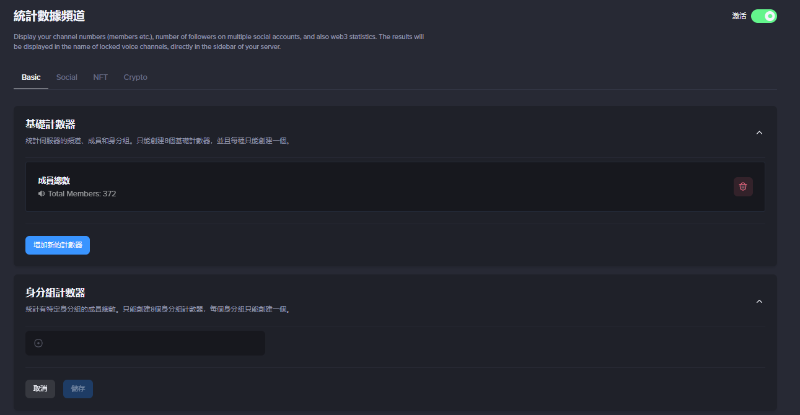
3. Statistics Channel – Similar to Serverstats
Trackable metrics include:
-
Online members
-
Number of bots
-
Total members
-
Peak online count
-
Text channels / total channels / total roles, etc.
4. Leveling System
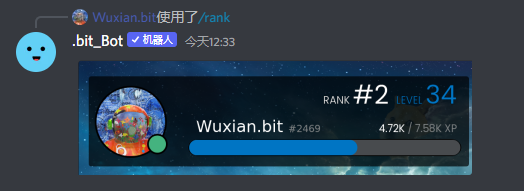
Mee6 includes an XP (experience) system. Once added, Mee6 awards XP based on user presence and chat activity. When XP reaches a threshold, users automatically level up.
Mee6 can auto-assign custom roles based on XP level (requires paid upgrade).
The common Rank command queries Mee6's XP leaderboard.
For more granular leveling control, consider Arcane, which adds features atop Mee6:
1- Grants faster XP gains for server boosters;
2- Awards extra XP for long messages (e.g., over 25 characters);
3- Allows setting a maximum level cap.
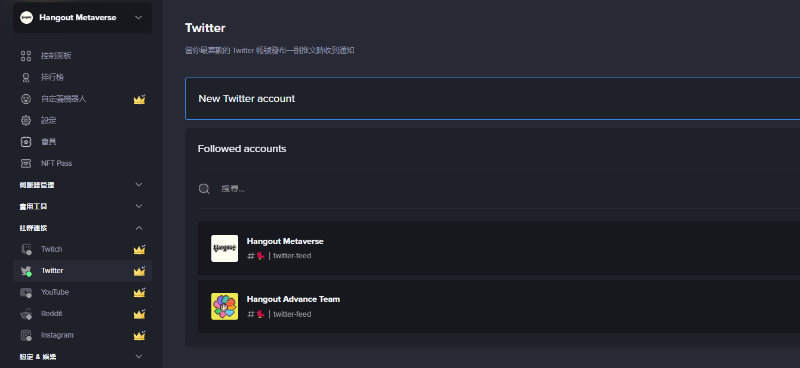
5. Sync Social Media Content to Discord (Paid Feature)
Supported platforms:
-
Twitter
-
Twitch
-
YouTube
-
Reddit
-
Instagram
6. Management Features
-
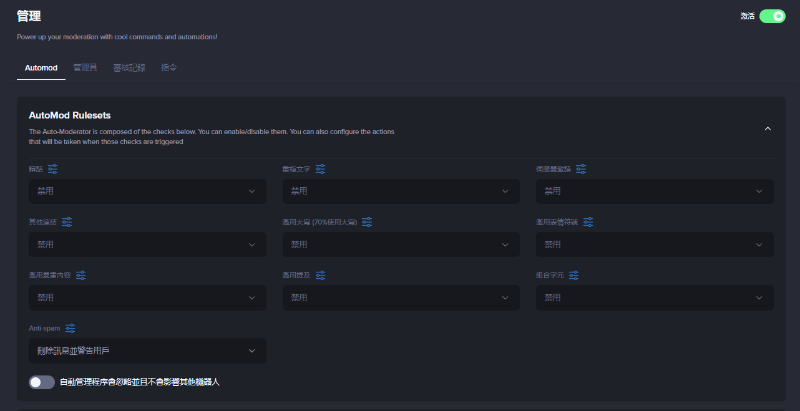
Automod - Automated Moderation
Block keywords, prevent spam, and restrict abuse of content types.
-
Audit Logs
Records admin actions for traceability during incidents.
7. Economy System (Points System)
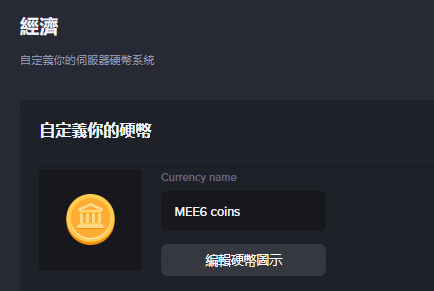
A fun way to boost engagement. Users earn coins (points) through activities like daily check-ins. Admins can manually reward users and set up redeemable items, creating a closed-loop economy.
8. ⭐ Customize Your Bot ⭐ (Paid Feature)
Customize Mee6’s name and avatar while retaining all functionalities.
The above covers only key Mee6 features. Mee6 continues to evolve with regular updates, including a recent Giveaway feature. Notably, Mee6 launched its MEE6 Genesis Pass NFT earlier this year, offering lifetime free access to premium features and exclusive Web3 utilities (e.g., NFT dashboards).
Reference: https://mee6.xyz/en/tutorials
Basic Operations
1. Server Analytics: serverstats
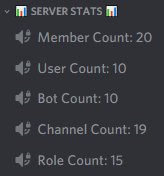
To make server stats instantly visible to admins and members, place a live dashboard at the top of your channel list using serverstats. This bot displays real-time data such as member count, channel count, roles, and custom metrics.
Usage:
-
Go to https://serverstatsbot.com/, click Invite, and grant admin permissions;
-
Type
/setupin chat. The bot will respond; select Voice channel placement. Stats appear at the top left within seconds.
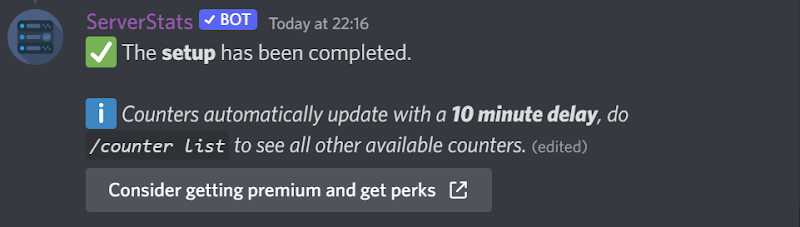
Note: If the bot doesn’t respond to /setup, ensure it has permission to send messages in that channel.
2. Twitter Feed: TweetShift
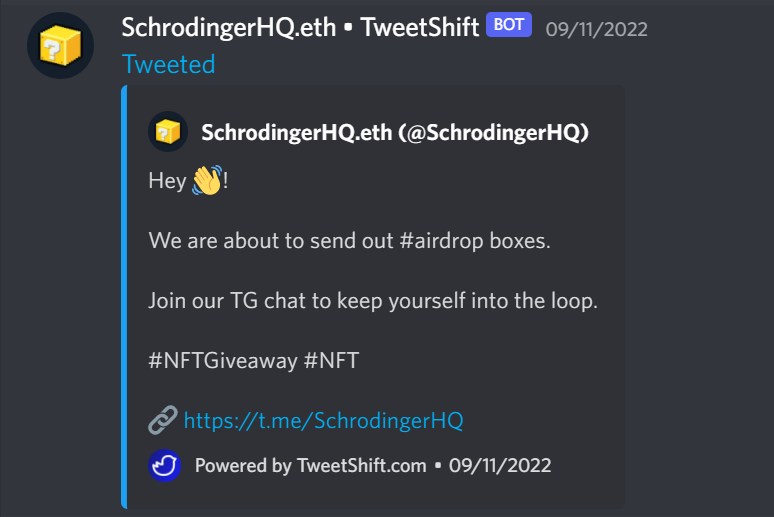
Twitter is a key channel for project updates. TweetShift helps keep your Discord community informed by automatically pushing tweets to a designated Discord channel.
Usage:
-
Visit https://tweetshift.com/, click “Invite to Server”;
-
Click “Dashboard” in the upper right;
-
Select your server, then go to “Twitter Feeds”;
-
Add the Twitter handle(s), select target channel (recommended to create a dedicated one), choose tweet types (retweets/replies/quotes), set display format (default: embedded link), then click “start”.
Notes:
Alternative bots:
For YouTube, Instagram, or TikTok feeds, try Pingcord, which supports seven social platforms. However, TweetShift suffices for most use cases.
Tutorial: https://www.youtube.com/watch?v=0OUCaHY_2-0
-
Note: Changes take 10–30 minutes to activate. Wait 30 mins before testing.
-
Supports up to 40 monitored Twitter accounts.
-
Consider creating a dedicated feed channel.
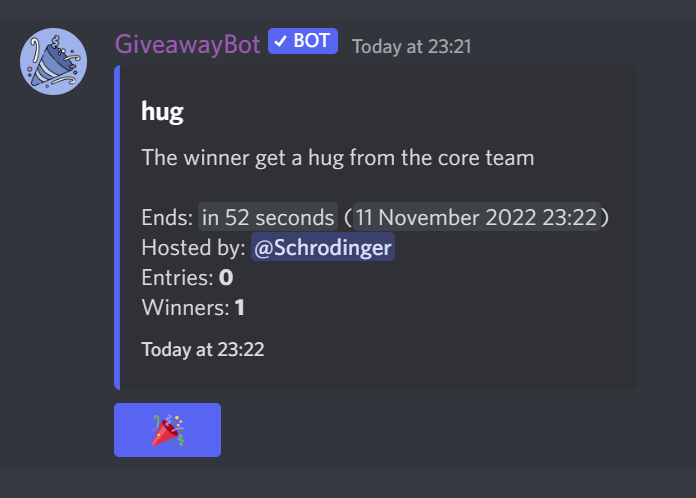
3. Giveaway Management: Giveaway Bot
Giveaways are common promotional events. With Giveaway Bot, setting them up is effortless.
Usage:
-
Visit https://giveawaybot.party/, click “Add to Discord”, select your server, and grant admin rights.
-
Create a dedicated giveaway channel.
-
In the giveaway channel, type
/gcreateto open the setup menu.

-
Click “Submit” to start the countdown. Users react with 🎉 to enter. Winners are drawn and announced automatically.
4. Ticket System
Tickets serve as a “customer support system” across Discord communities, enabling 1-on-1 or group assistance.
Common use cases:
-
Support—user feedback on product issues or NFT-related questions;
-
Collab—dedicated for partnerships, AMAs, and outreach;
-
Application—recruitment, ambassador programs, internships, mod applications;
-
Claim—reward distribution.
Setup steps:
-
Invite the bot to your Discord server. Select target server and proceed.
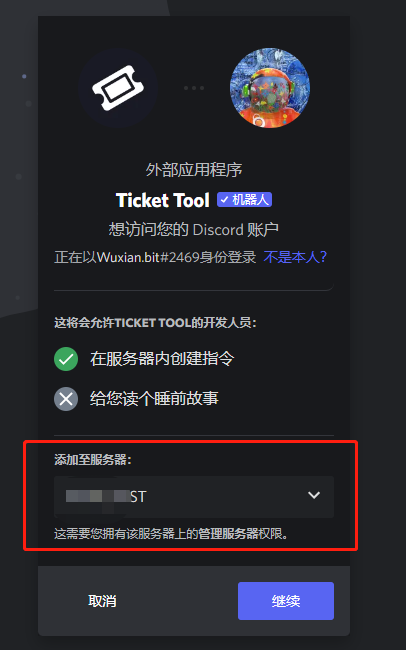
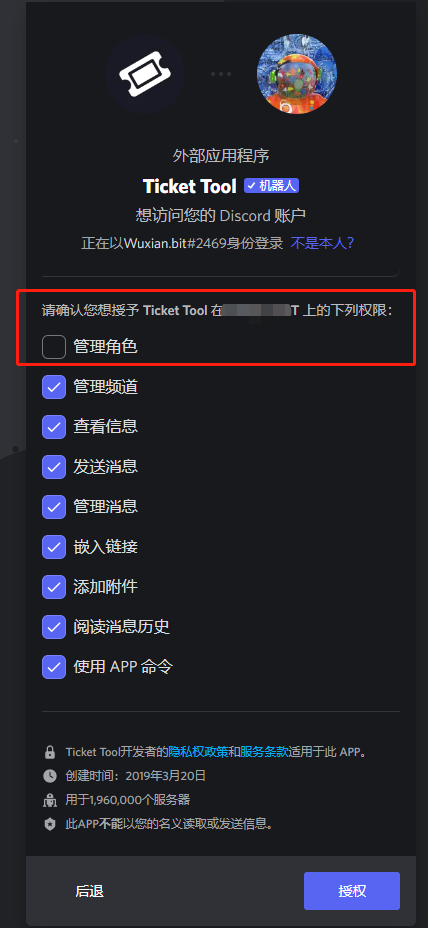
Suggestion: Disable 'Manage Roles' permission during setup (not required)
-
Create a new ticket channel (or multiple if separating ticket types).

-
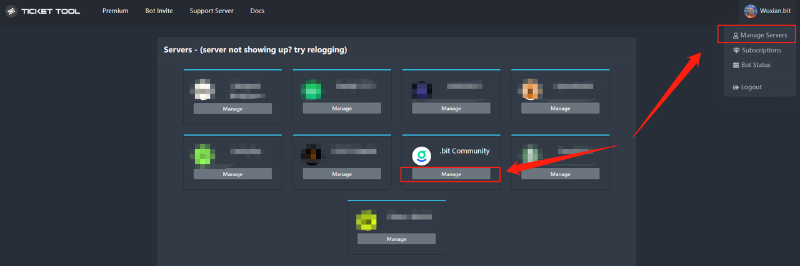
Access the TicketTool Dashboard.
Click your profile → Manage Servers → Select target server → Enter settings.
-
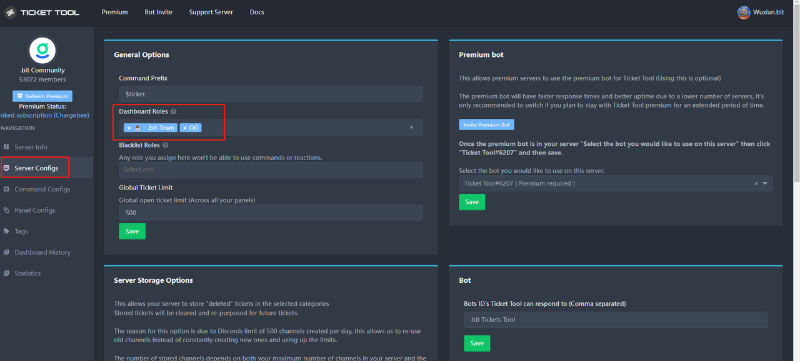
Server Configs
Start simple. Key settings:
-
Restrict dashboard access to specific roles (Dashboard Roles)
-
Set max concurrent tickets
-
Switch to premium (paid) bot version if needed (IDs differ)
-
Enable ticket log storage
-
Backup and restore config (server owner only)
-
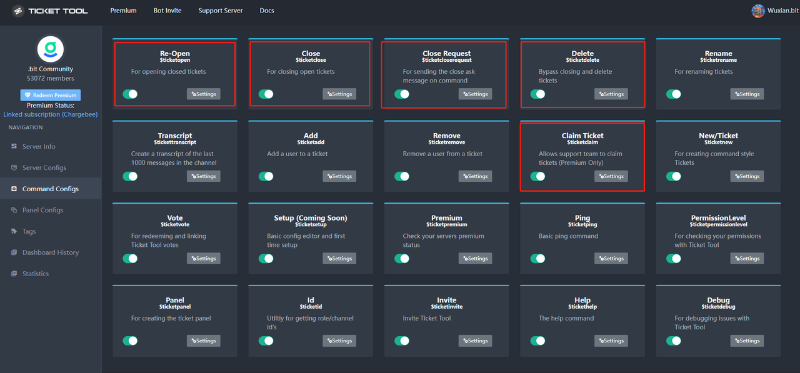
Command Configs
Commonly configured permissions:
-
Reopen closed tickets
-
Two-step close confirmation
-
Delete closed tickets
-
Claim tickets—others adjustable per need
-
Key: Panel Configs
First, create a Panel.

Join TechFlow official community to stay tuned
Telegram:https://t.me/TechFlowDaily
X (Twitter):https://x.com/TechFlowPost
X (Twitter) EN:https://x.com/BlockFlow_News