




Web3 Security Beginner's Guide: How to Protect Your Clipboard?
TechFlow Selected TechFlow Selected
Web3 Security Beginner's Guide: How to Protect Your Clipboard?
This article focuses on clipboard security, guiding you through its underlying principles, attack methods, and prevention recommendations derived from our practical experience, helping users build a stronger awareness of asset protection.
 Navigating Web3 tides with focused insights
Authors: Liz & Reborn
Editor: Sherry
Background
In the previous edition of our Web3 security guide, we analyzed Ponzi scheme scams. This time, we'll focus on clipboard security.
In many cases of stolen crypto assets, victims are often most confused about one thing: "I never transmitted my private key online—how could it have been stolen?" In reality, leaks of private keys or seed phrases don't necessarily occur through cloud storage or network uploads. They can also happen during operations that seem "local and secure." For example, have you ever copied and pasted your private key or seed phrase? Have you saved them in notes or taken screenshots? These common actions are precisely the entry points hackers target.
This article dives into clipboard security, explaining its underlying mechanisms, attack methods, and practical prevention tips we've compiled to help users build stronger awareness for protecting their assets.
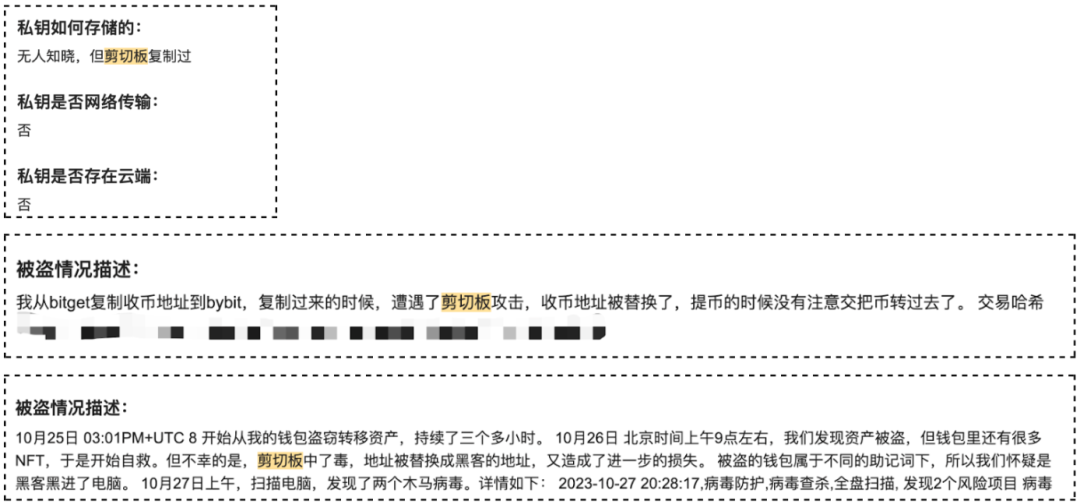
Why the Clipboard Is Risky
The clipboard is a temporary storage space provided by operating systems that allows applications on a local device to share data. It's primarily used to store transient information such as text, images, or file paths, enabling easy copy-and-paste functionality across apps. For instance, when you copy a wallet address, the OS stores it in the clipboard until replaced or cleared.
-
Plaintext storage: Most operating systems (e.g., Windows, macOS, Linux) do not encrypt clipboard data by default; instead, they store it in plaintext within memory.
-
Accessible via system APIs: Operating systems provide clipboard-related APIs that allow applications to access clipboard content. This means any app—including text editors, browser extensions, input methods, screenshot tools, or even malware—with proper permissions can silently read or alter clipboard data in the background.
Moreover, since clipboard contents aren’t automatically cleared by default, they may remain accessible for extended periods. If users copy sensitive data and fail to promptly overwrite or erase it, malicious software or third-party apps gain an opportunity to extract this information.
Some clipboard-targeting malware specifically alters addresses. According to the 2024 UNODC report on transnational organized crime in Southeast Asia, criminal groups in the region frequently use a type of malware known as a “clipper.” This software monitors infected systems’ clipboards and replaces cryptocurrency transaction addresses. When victims unknowingly complete a transfer, funds are sent directly to the attacker’s address. Given that crypto wallet addresses are typically long, users rarely notice changes to the recipient address.
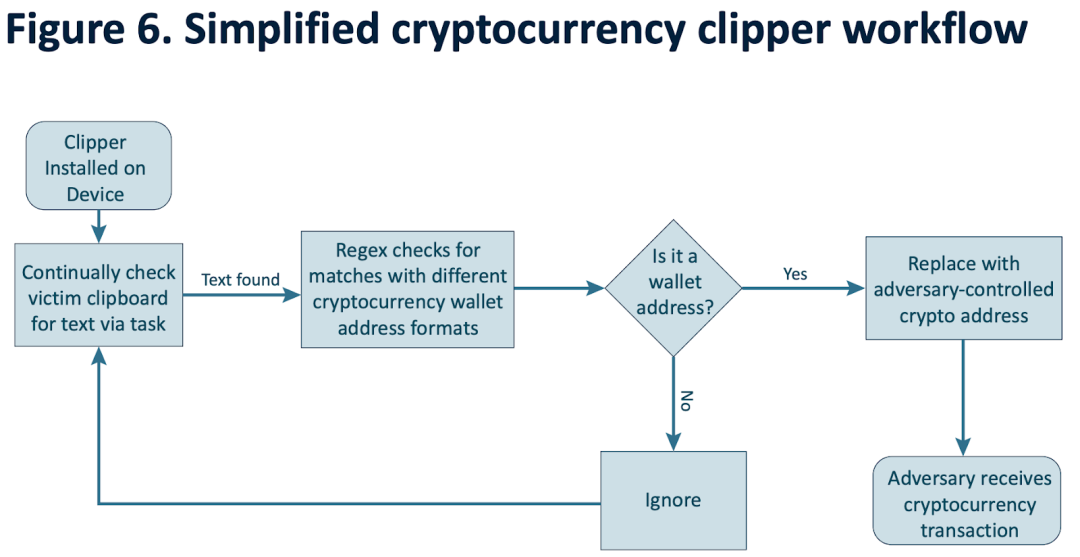
(https://www.unodc.org/roseap/uploads/documents/Publications/2024/TOC_Convergence_Report_2024.pdf)
By now, it should be clear that the most fundamental way to prevent clipboard attacks is to avoid copying sensitive information altogether and install professional antivirus software to block malware infiltration.

Clearing the clipboard mainly serves to shorten the exposure window of sensitive data, reducing the risk of being read by malware or other apps. If you accidentally copy sensitive data, clearing the clipboard immediately helps lower the chance of leakage. A simple method is to copy a large block of irrelevant text right away, effectively overwriting and "flushing out" the prior sensitive content, thereby reducing the likelihood of unauthorized access.
However, if your device is already infected with malware designed to steal or modify clipboard content, manual clearing offers limited protection. Such malicious programs can monitor and extract data in real time, making it nearly impossible for manual actions to keep pace. Therefore, the best practice remains avoiding copying sensitive information from the outset and ensuring your device’s overall security. If you suspect infection, we recommend quickly transferring your assets to a new wallet to prevent further losses.
Besides the clipboard, sensitive data can also leak through other channels—users should remain vigilant:
-
Photo libraries, cloud storage, input methods: Avoid letting private keys or seed phrases touch the internet—including photo albums, cloud backups, WeChat Collections, phone memos, etc. Do not enter sensitive information using third-party input methods. Use only system-default keyboards, disable cloud sync features in input methods, and avoid filling in private keys or seed phrases via copy-paste whenever possible.
-
Malware risks: Regularly scan your system with antivirus software to detect and remove potential threats.
-
Browser extension permissions: Disable unnecessary browser extensions. If concerned about an extension’s permission risks, after installation, do not use it immediately. Identify the extension ID, locate its local directory path, find the manifest.json file in the root folder, and send the file contents to AI tools for permission risk analysis. For better isolation, consider running unfamiliar extensions under a separate Chrome Profile so any damage remains contained.
-
Risk of address tampering during transfers: When conducting cryptocurrency transactions, always double-check wallet addresses carefully to avoid accidental fund transfers due to clipboard manipulation.
Clipboard Clearing Guide
Below are some simple ways to clear the clipboard on macOS, iOS, Android, and Windows—practical steps everyone can take:
macOS stores only the current clipboard item without history. Simply copying a piece of unrelated text will overwrite any prior sensitive content. Similarly, iOS also retains only the current clipboard item. Besides copying random text, users can create a shortcut command and add it to the home screen for faster and easier clipboard clearing.

(https://x.com/0xBeyondLee/status/1855630836118467028)
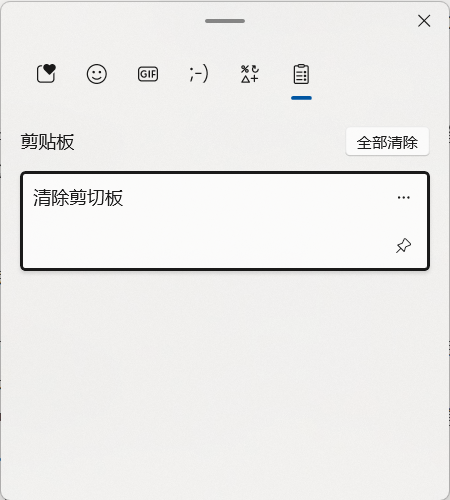
Windows 7 and earlier versions store only the current clipboard content with no history. Copying any new content will overwrite the original, effectively clearing it. On Windows 10/11 (if "Clipboard History" is enabled), press Win + V to view history and click the "Clear all" button in the top-right corner to delete all records.
On Android, clipboard history usually refers to what's stored by the input method. Many Android devices offer clipboard history within the keyboard settings. Users can enter the input method’s clipboard management interface and manually delete unwanted entries.
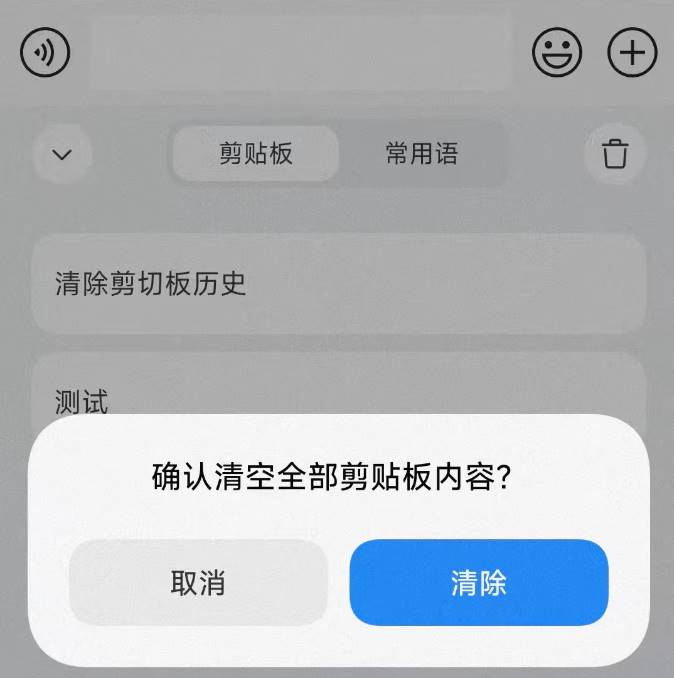
In short, if the system does not save clipboard history, simply copying new content will suffice. If the system maintains clipboard history (like Windows 10/11 or certain Android devices), follow the steps above to manually clear the history.
Summary
The clipboard is a commonly overlooked yet frequent vector for data leaks. We hope this article helps users reevaluate the risks of copy-paste operations and understand that 'local' does not mean 'secure.' Security isn't just a technical issue—it's also a matter of behavior and habits. Only by staying alert in daily operations, strengthening security awareness, and implementing basic protective measures can users truly safeguard their digital assets.
Join TechFlow official community to stay tuned
Telegram:https://t.me/TechFlowDaily
X (Twitter):https://x.com/TechFlowPost
X (Twitter) EN:https://x.com/BlockFlow_News
 @SlowMist_Team