



With AI Agents being so popular, how can I use AI to teach me how to build one?
TechFlow Selected TechFlow Selected
With AI Agents being so popular, how can I use AI to teach me how to build one?
How to use AI technology to create an AI Agent?
 Navigating Web3 tides with focused insights
By: SunnyZ
Most people in the Web3 industry likely know that this bull market is driven by AI and MEMEs. Many assume it's just a bubble or hype, but the speed of AI development today is incomparable to the past. AI Agents have become a hot topic. As a Web3 marketer, posting tweets regularly is routine—I often use ChatGPT to help draft them. So, why not go one level deeper? Can we let AI teach us how to build an AI agent that automatically posts tweets? In this article, I'll walk you step-by-step through using Python to create a simple AI Agent that automatically posts tweets for us.
1. Introduction
An AI Agent is an intelligent system combining machine learning and automation capable of performing tasks without human intervention. This article demonstrates, through a practical example, how to leverage AI technology to create an agent that automatically posts tweets.
2. Environment Setup
Before writing code, we need to set up our development environment. Below are the required tools and libraries:
2.1 Install Cursor
Cursor is an AI-powered code editor.
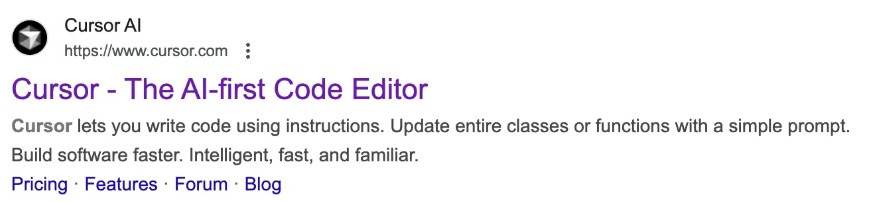
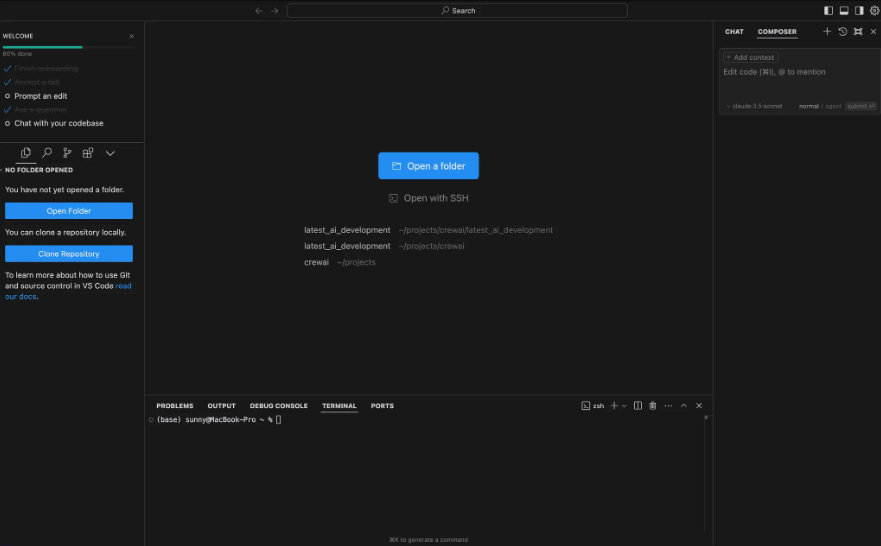
After installation, it should look like the image below:
2.2 Install Anaconda [Python Environment Manager]
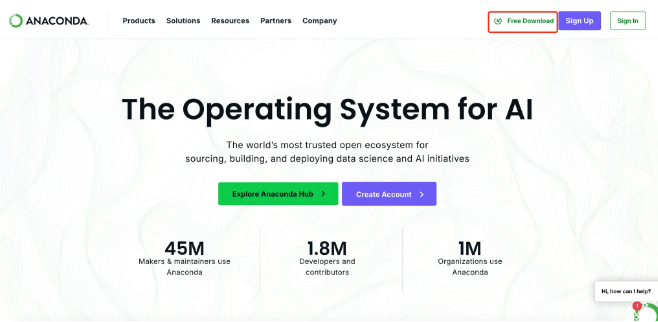
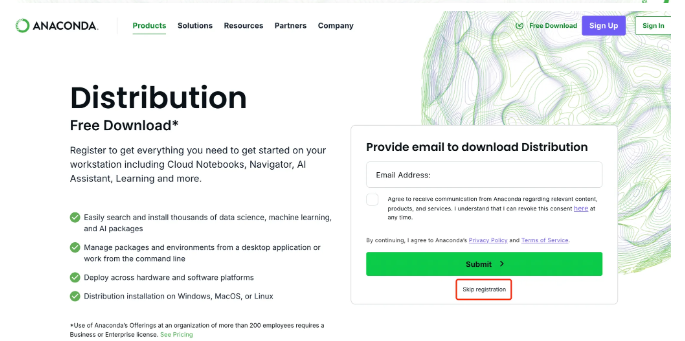
This step simply requires downloading and clicking "Continue" through each prompt.
2.3 Install Tweepy [Twitter library for Python]
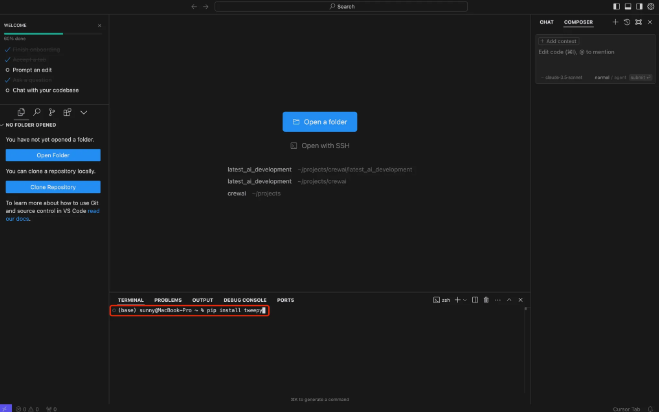
2.4 Install CrewAI [AI Agent Development Framework]
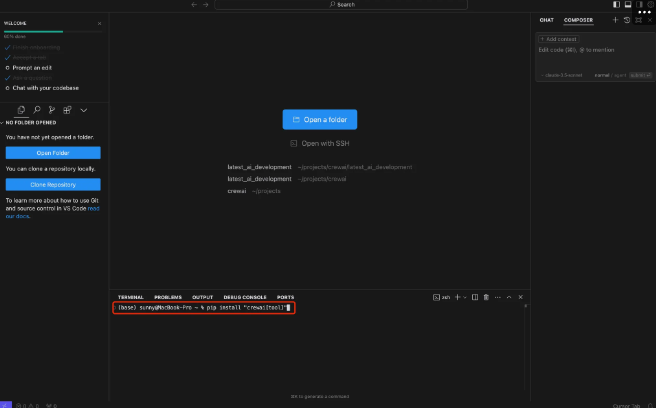
2.5 Sign Up for a Twitter Developer Account
Account link: **[https://developer.x.com/]**
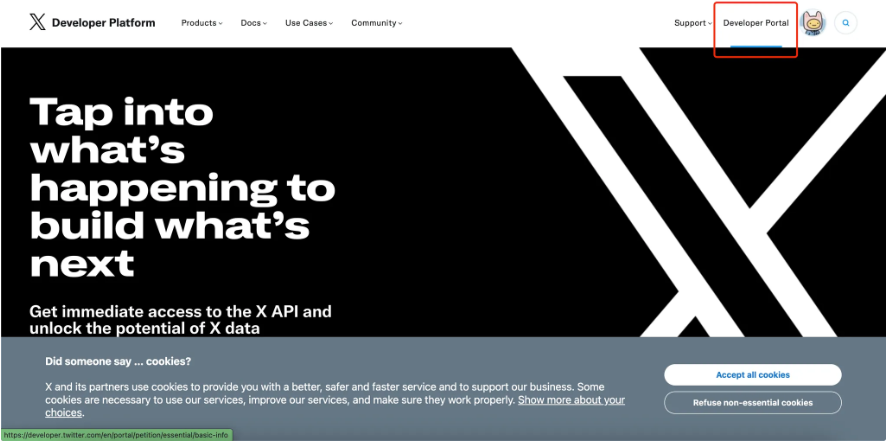
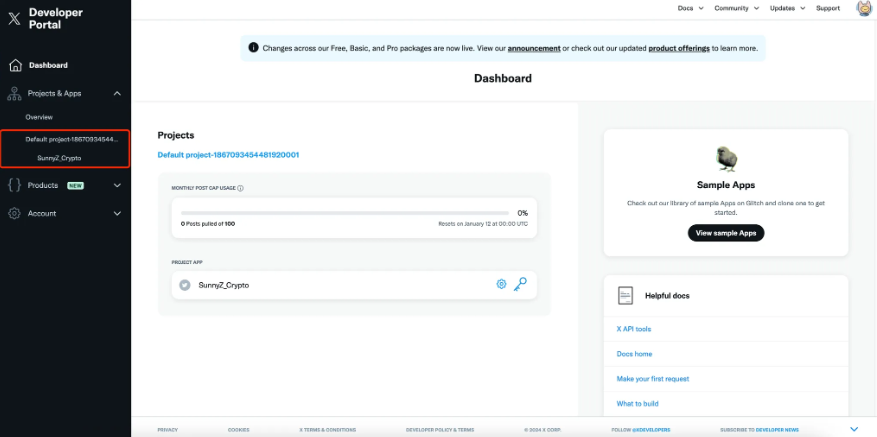
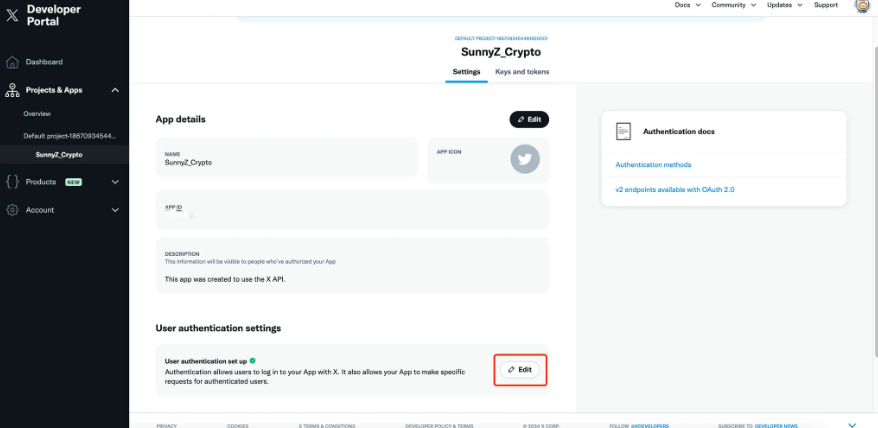
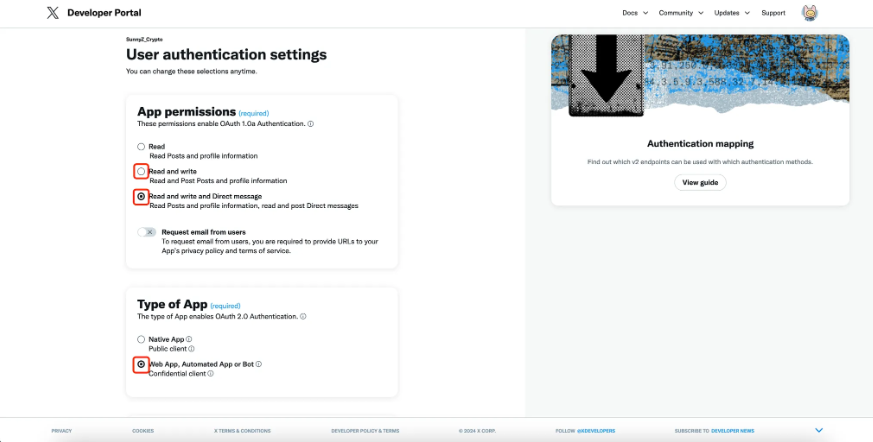
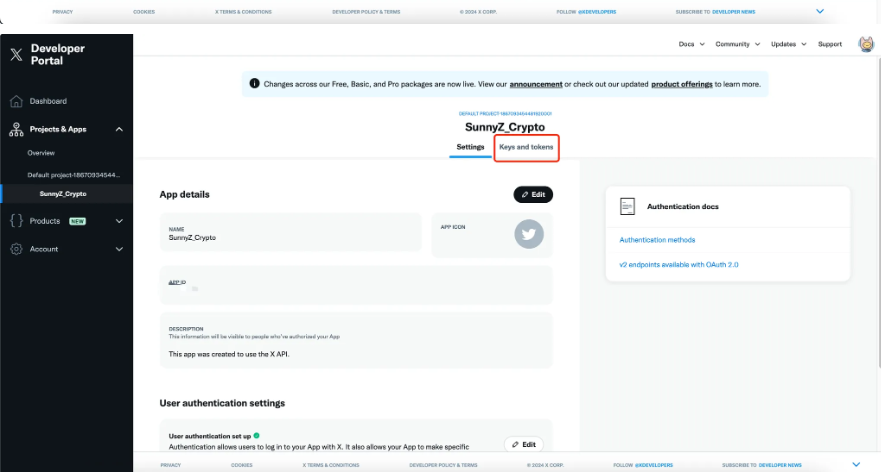
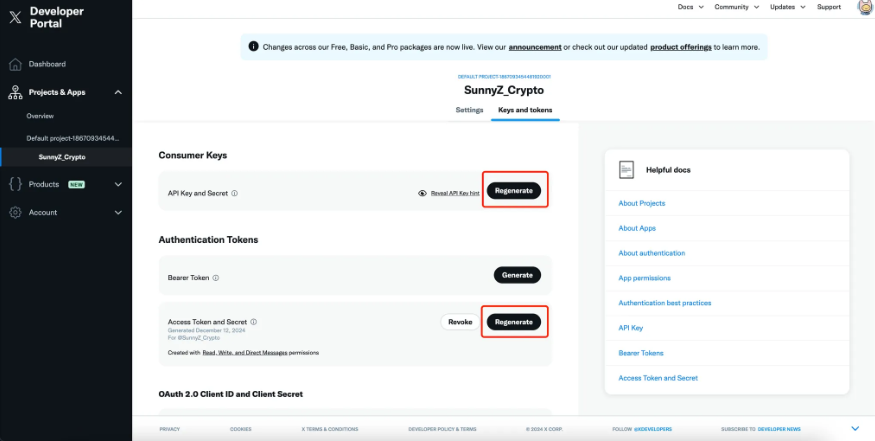
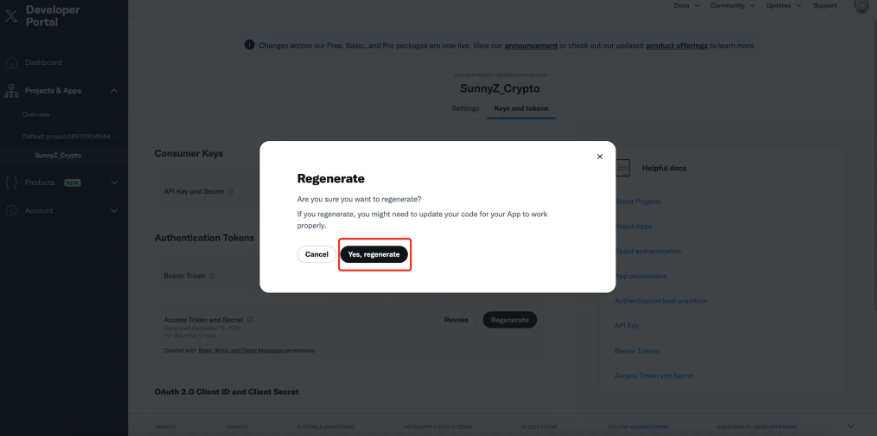
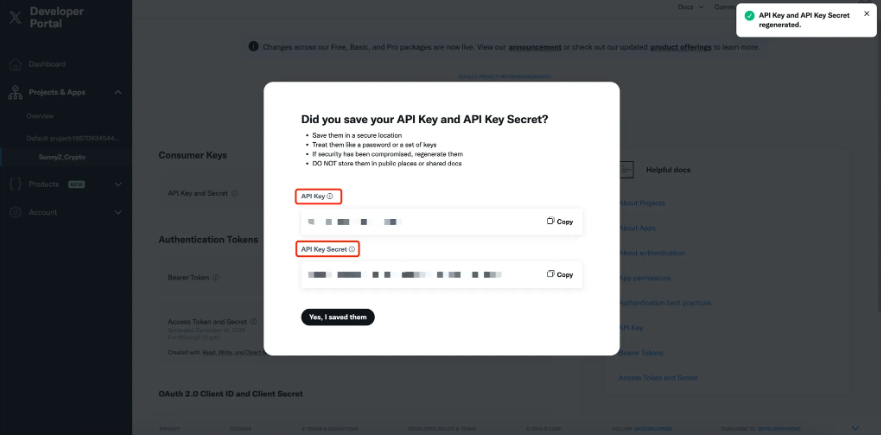
From the screenshots above, highlighted in red, obtain your API_KEY and API_KEY_SECRET.
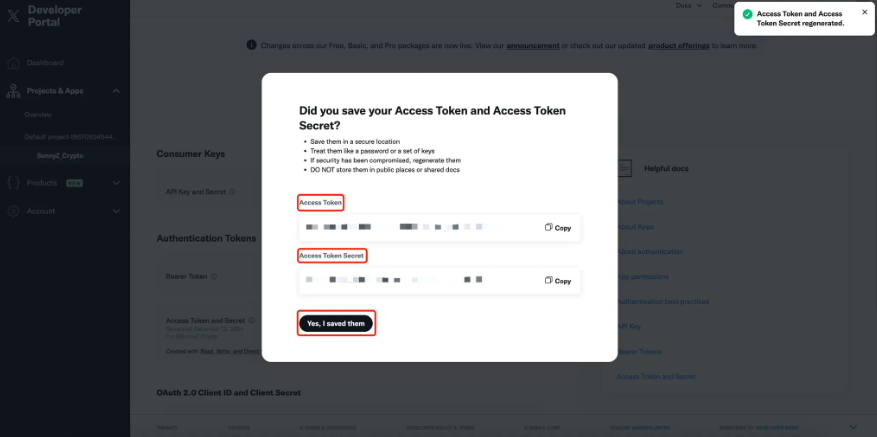
Similarly, retrieve your ACCESS_TOKEN and ACCESS_TOKEN_SECRET.
With these four fields—API_KEY, API_KEY_SECRET, ACCESS_TOKEN, and ACCESS_TOKEN_SECRET—you can establish account connectivity via API calls, enabling you to post, retweet, and perform other operations from your Twitter account. For details on API permissions and quotas, refer to the link below.
[https://developer.x.com/en/portal/products]
2.6 Establishing a Twitter API Connection
Below is a demo showing how to use Python to send a tweet from your Twitter account:
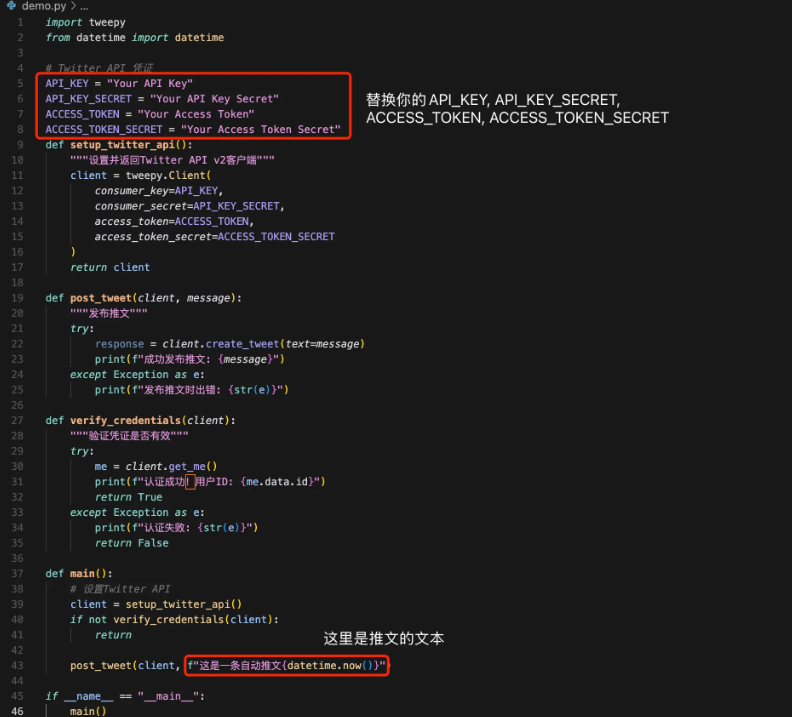
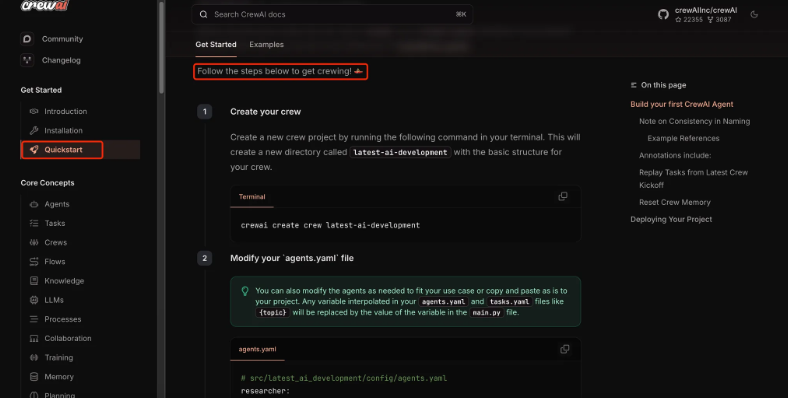
2.7 Create Your Own Crew
CrewAI is a multi-agent framework that allows defining each agent’s role, goal, backstory, task descriptions, output requirements, and assigned agents. It also enables defining workflows so multiple agents can collaborate.
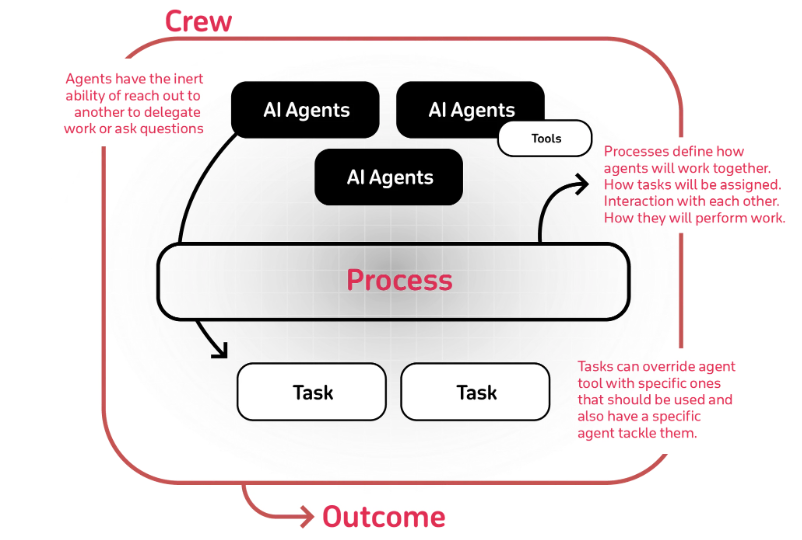
For a simple example, see the link below:
[https://docs.crewai.com/quickstart]
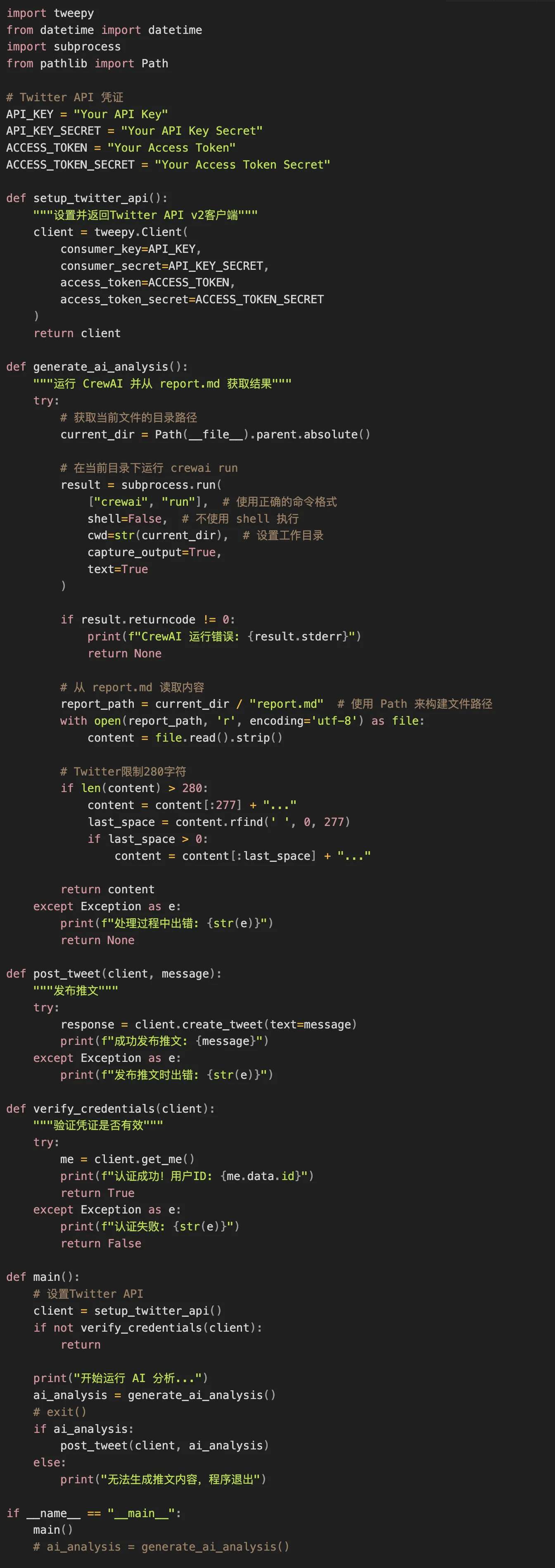
2.8 One-Click Send AI-Generated Content to Twitter
Combining steps 2.6 and 2.7 (the previous two steps), you can send AI-generated content directly to Twitter. The code is shown here so you can follow along and see exactly how the AI writes an agent and progressively posts tweets.
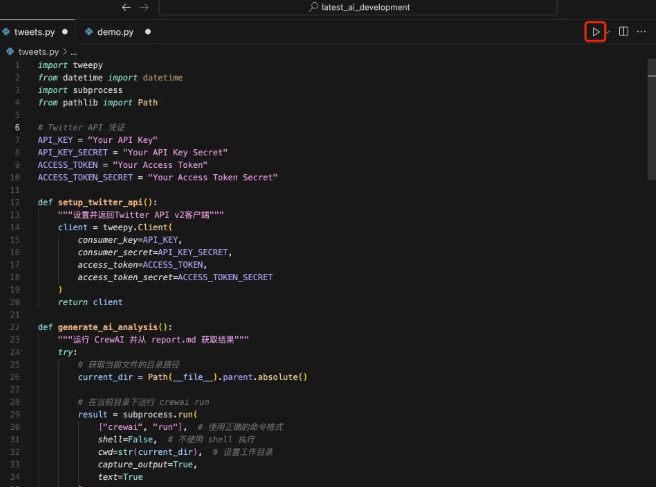
2.8 Run Your Code
Click the button in the top-right corner.
Terminal output will look like this:

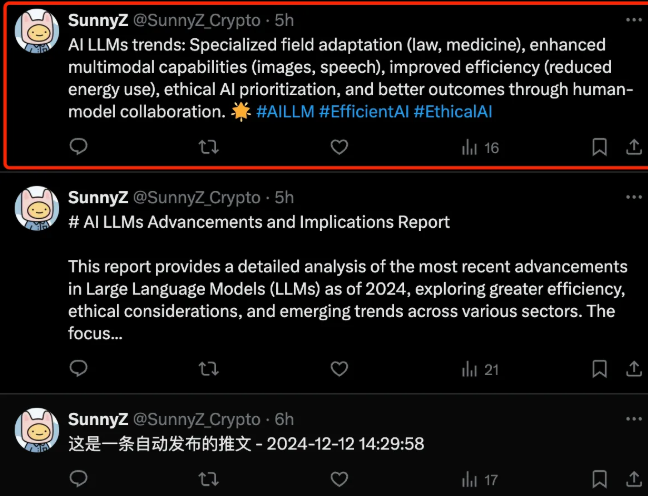
2.9 Verify Tweet Was Sent Successfully
To achieve the desired result, I debugged several times. You can see the evolution from a simple "automatically posted tweet" to emoji-enhanced tweets after three debugging rounds. This is where building an AI Agent becomes most challenging—identifying and fixing issues. Version 1: Manually typed plain text tweet. Version 2: AI-generated content, but ignored Twitter's character limit, so only partial content was displayed.
Version 3: AI-generated content with character limits considered, plus additional style instructions. Hence, the third tweet includes emojis—an adjustment made autonomously by the AI based on overall Twitter style trends.
3. Optimizing Code Based on Twitter Requirements
This step is crucial. To meet final requirements, pay attention to the following:
- Tweets must be under 280 characters. Adjust prompts in agent and task configurations to enforce this limit.
- Free-tier API limit: Only 17 API calls allowed within 24 hours.
4. Content Taught to Me by ChatGPT
Ensure Python is installed on your computer. Check using the following command:

If not installed, download and install it from [Python's official website].
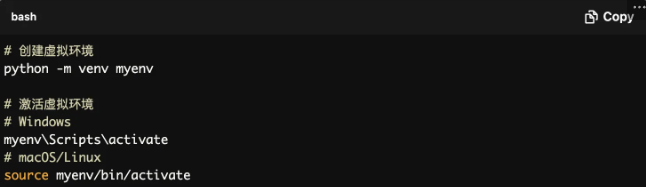
4.1 Create a Virtual Environment
Using a virtual environment isolates project dependencies and prevents conflicts with other projects. Use the following commands to create and activate a virtual environment:
4.2 Install Required Libraries
We need certain libraries to interact with the Twitter API and process data. Install them using the following command:

- Tweepy: For interacting with the Twitter API.
- OpenAI: For calling AI models to generate content.
4.3 Obtain Twitter API Credentials
To use the Twitter API, you need to create a developer account and obtain API credentials. Steps are as follows:
- Visit [Twitter Developer] and log in.
- Create a new application.
- Retrieve your API Key and API Secret Key.
Make sure to save these credentials, as we’ll use them in our code.
4.4 Writing the Code
4.1 Import Libraries
First, import the required libraries:

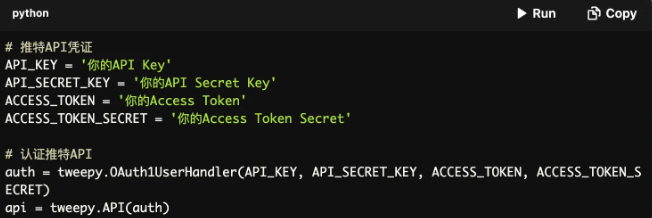
4.2 Configure Twitter API
Next, configure your Twitter API credentials:
4.3 Configure OpenAI API
Likewise, configure your OpenAI API key:

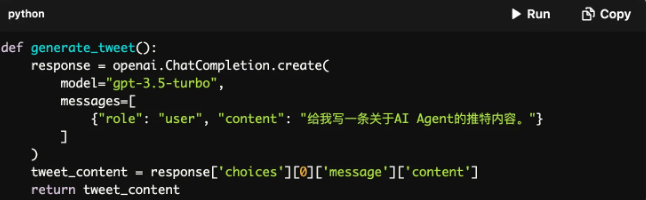
4.4 Generate Tweet Content
We will create a function that uses the OpenAI model to generate tweet content:
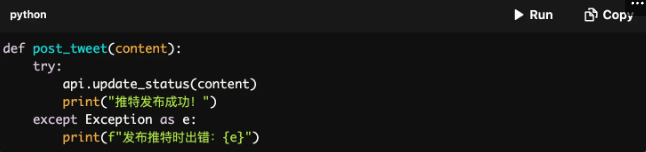
4.5 Post the Tweet
Next, create a function to post the generated tweet content:
4.6 Main Program
Finally, integrate all components into the main program:

4.7 Run the Code
Ensure your virtual environment is activated, then run the following command in your terminal:

This will generate and post a tweet about AI Agents to your account.
In the tutorial above, you can see the results of three progressively improved tweets that were successfully posted.
8. Acknowledgments
Thanks to AI for helping me generate code and automate tweeting. Special thanks to Yu. [TG @rainy_zh] for helping with environment setup and debugging. Also grateful for support from TechFlow and Metaera. I hope this article helps you understand how AI Agents work. If anything is unclear, feel free to reach out. My Telegram and Twitter: @SunnyZ_Crypto
Join TechFlow official community to stay tuned
Telegram:https://t.me/TechFlowDaily
X (Twitter):https://x.com/TechFlowPost
X (Twitter) EN:https://x.com/BlockFlow_News
 @SunnyZ_Crypto