




SlowMist: Chrome Malicious Extension Steals One Million Dollars – Explained
TechFlow Selected TechFlow Selected
SlowMist: Chrome Malicious Extension Steals One Million Dollars – Explained
While considering user experience, the platform must pay attention to protecting user accounts and assets securely.
 Navigating Web3 tides with focused insights
Author: 23pds@SlowMist Security Team
Background
On June 3, 2024, Twitter user @CryptoNakamao shared how they lost $1 million after downloading a malicious Chrome extension called Aggr, drawing widespread attention from the crypto community about extension-related risks and concerns over digital asset security. On May 31, SlowMist Security Team had already published an article titled "Wolves in Sheep's Clothing: Analysis of Fraudulent Chrome Extensions," providing a detailed analysis of the malicious Aggr extension’s attack methods. Given that many users lack background knowledge on browser extensions, SlowMist’s Chief Information Security Officer, 23pds, presents this guide in six questions and answers to explain the basics of browser extensions and their potential risks, along with practical recommendations for mitigating these threats—aiming to help both individual users and trading platforms better protect their accounts and assets.
https://x.com/im23pds/status/1797528115897626708
Q&A
1. What is a Chrome Extension?
A Chrome extension is a plugin designed for Google Chrome that enhances or modifies browser functionality. These extensions can customize browsing experiences by adding new features, content, or interactions with websites. They are typically built using web technologies such as HTML, CSS, JavaScript, and others.
The structure of a Chrome extension usually includes the following components:
-
manifest.json: The configuration file defining basic information about the extension (e.g., name, version, permissions).
-
Background Scripts: Run in the browser background to handle events and long-running tasks.
-
Content Scripts: Execute within webpage contexts and interact directly with page content.
-
User Interface (UI): Includes toolbar buttons, pop-up windows, options pages, etc.
2. What do Chrome Extensions do?
-
Ad Blocking: Extensions can block ads on webpages, improving load speed and user experience (e.g., AdBlock, uBlock Origin).
-
Privacy and Security: Some extensions enhance privacy and security by preventing tracking, encrypting communications, managing passwords (e.g., Privacy Badger, LastPass).
-
Productivity Tools: Help users manage tasks, take notes, track time (e.g., Todoist, Evernote Web Clipper).
-
Developer Tools: Provide debugging and development aids like inspecting page structures, analyzing network requests (e.g., React Developer Tools, Postman).
-
Social Media & Messaging: Integrate social platforms and messaging tools for easier notification handling (e.g., Grammarly, Facebook Messenger).
-
Webpage Customization: Allow users to modify appearance and behavior of webpages (e.g., Stylish, Tampermonkey).
-
Task Automation: Automate repetitive actions like form filling or bulk downloads (e.g., iMacros, DownThemAll).
-
Language Translation: Real-time translation of webpage content (e.g., Google Translate).
-
Crypto Assistance: Facilitate cryptocurrency transactions (e.g., MetaMask).
Due to their flexibility and diversity, Chrome extensions can support nearly any browsing scenario, helping users perform various tasks more efficiently.
3. What permissions do Chrome Extensions get upon installation?
Chrome extensions may request a range of permissions declared in the manifest.json file, which are shown to users during installation. Common permissions include:
-
<all_urls>: Grants access to content on all websites, allowing reading and modification of data across sites.
-
tabs: Access browser tab information, including opening, closing, and retrieving tabs.
-
activeTab: Temporarily access the currently active tab, often triggered when the user clicks the extension icon.
-
storage: Use Chrome's storage API to save and retrieve data (e.g., settings, user preferences).
-
cookies: Read and modify browser cookies.
-
webRequest and webRequestBlocking: Intercept and modify network requests—commonly used in ad blockers and privacy tools.
-
bookmarks: Access and modify browser bookmarks.
-
history: Access and modify browsing history.
-
notifications: Display desktop notifications.
-
contextMenus: Add custom items to the browser’s right-click context menu.
-
geolocation: Access the user’s geographical location.
-
clipboardRead and clipboardWrite: Read from and write to the system clipboard.
-
downloads: Manage downloads (start, pause, cancel).
-
management: Manage other extensions and apps in the browser.
-
background: Run long-term background processes.
-
notifications: Show system-level alerts (duplicate entry).
-
webNavigation: Monitor and alter navigation behavior in the browser.
These permissions enable powerful functionalities but also mean extensions could potentially access sensitive user data such as cookies and authentication tokens.
4. Why can malicious Chrome extensions steal user privileges?
Malicious Chrome extensions exploit requested permissions to steal user credentials because they have direct access to the browser environment and data. Specific reasons and techniques include:
-
Broad permission access: Malicious extensions often request excessive permissions like full website access (<all_urls>), tab control (tabs), and local storage (storage), enabling wide-ranging surveillance of user activity.
-
Manipulating network requests: Using webRequest/webRequestBlocking, attackers intercept login forms to capture usernames and passwords.
-
Reading and modifying page content: Content scripts inject code into webpages to extract any inputted data such as form fields and search queries.
-
Accessing browser storage: With storage permission, malicious extensions read LocalStorage and IndexedDB, potentially containing session tokens or private data.
-
Clipboard manipulation: clipboardRead/Write allows stealing or altering copied text (e.g., cryptocurrency addresses).
-
Phishing via content spoofing: Modify displayed content or redirect users to fake versions of legitimate sites to trick them into entering credentials.
-
Persistent background operation: Background scripts run continuously, monitoring user behavior over time.
-
Malware distribution: downloads permission enables automatic download and execution of malicious payloads.
5. Why were victims of this malicious extension compromised?
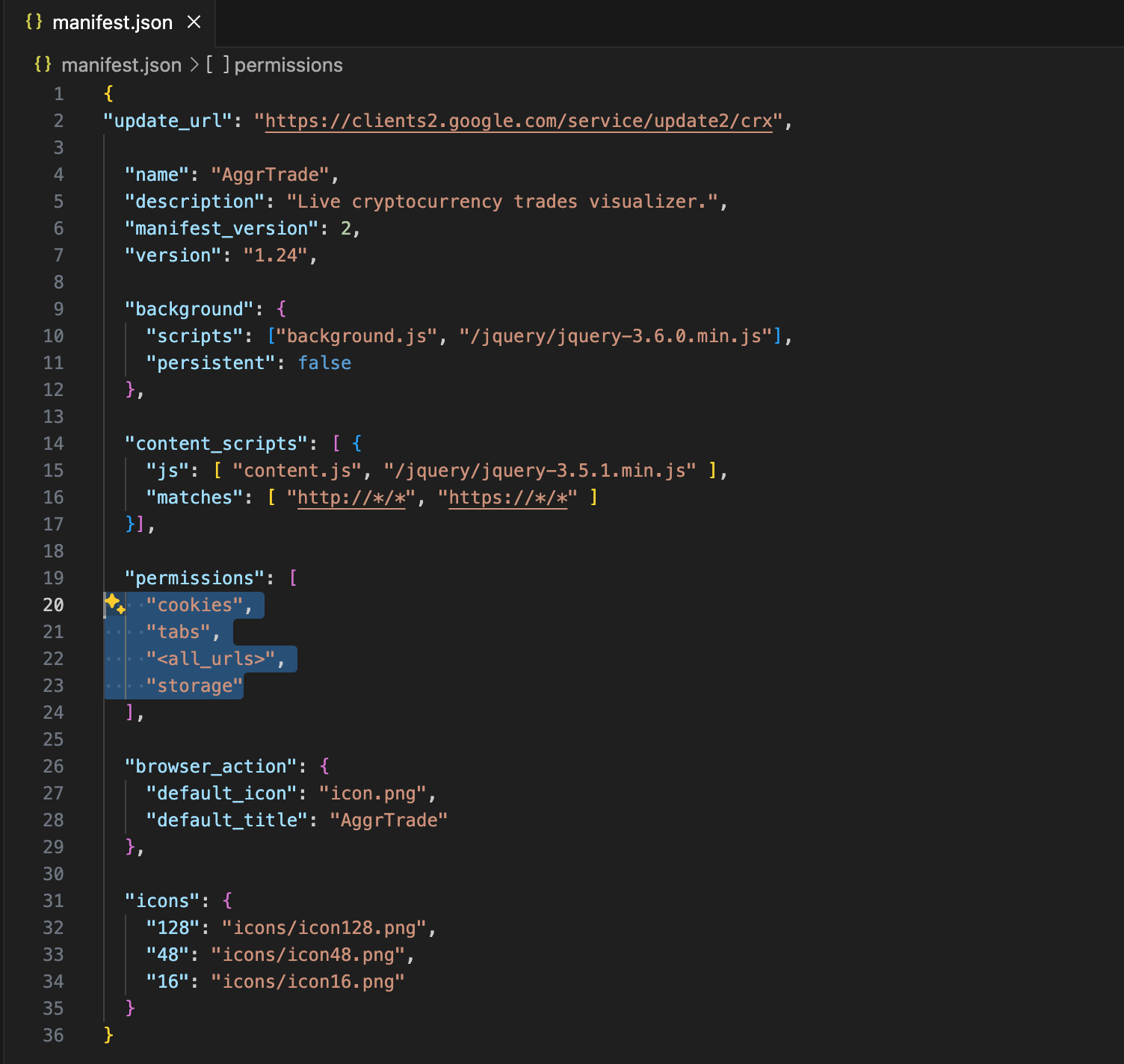
The malicious Aggr extension obtained exactly the dangerous permissions discussed above. Below is a snippet of its manifest.json permissions section:
-
cookies
-
tabs
-
<all_urls>
-
storage
6. What can attackers do after stealing users’ cookies via malicious Chrome extensions?
-
Account Access: Attackers use stolen cookies to impersonate users and log into exchange accounts, accessing balances and transaction histories.
-
Unauthorized Trading: Stolen session cookies may allow unauthorized buying/selling of cryptocurrencies or transferring assets.
-
Fund Withdrawals: If cookies contain valid session tokens, attackers might bypass two-factor authentication (2FA) and withdraw funds directly to attacker-controlled wallets.
-
Data Theft: Extract sensitive personal documents, KYC info, or contact details for identity theft or phishing campaigns.
-
Account Takeover: Change account recovery options like email or phone number to lock out the real owner.
-
Social Engineering: Impersonate the victim to send scam messages to their contacts, escalating the attack surface.
Countermeasures
At this point, users may wonder: Should I go offline? Use a dedicated computer? Avoid web platforms entirely? While extreme reactions exist online, we can instead learn to mitigate these risks responsibly:
Recommendations for Individual Users:
-
Strengthen Security Awareness: Always remain skeptical and cautious when installing software or granting permissions.
-
Install Only Trusted Extensions: Download only from official sources like Chrome Web Store. Check reviews and required permissions carefully. Never grant unnecessary access.
-
Use Isolated Browser Environments: Avoid installing untrusted extensions. Consider using separate browsers—one for plugins/tools, another exclusively for financial activities.
-
Monitor Account Activity Regularly: Frequently review login logs and transaction history. Act immediately if anomalies are detected.
-
Log Out After Use: Always manually log out after completing operations. Many users leave sessions active for convenience, creating serious security risks.
-
Use Hardware Wallets: Store large crypto holdings in hardware wallets to minimize exposure.
-
Secure Browser Settings and Tools: Employ privacy-focused extensions (ad blockers, tracker blockers) to reduce risk from malicious add-ons.
-
Install Security Software: Use antivirus and anti-malware tools to detect and block malicious extensions.
Finally, here are risk control suggestions for platforms to reduce the threat posed by malicious Chrome extensions:
Enforce Two-Factor Authentication (2FA):
-
Mandatory 2FA: Require all users to enable 2FA for login and critical operations (trading, withdrawals). This ensures that even if cookies are stolen, attackers cannot access accounts without secondary verification.
-
Multiple 2FA Methods: Support various 2FA types including SMS, email, Google Authenticator, and hardware tokens.
Session Management & Security:
-
Device Management: Allow users to view and terminate active sessions across devices.
-
Session Timeout: Automatically log out inactive sessions to limit window of compromise.
-
IP and Geolocation Monitoring: Detect and alert on logins from unusual IPs or locations; optionally block suspicious attempts.
Enhanced Account Security Settings:
-
Security Alerts: Send immediate notifications (via email/SMS) for key actions like logins, password changes, or withdrawals.
-
Emergency Freeze Option: Enable users to quickly freeze their account during suspected breaches.
Strengthen Monitoring & Risk Control Systems:
-
Anomaly Detection: Use machine learning and big data analytics to identify abnormal behaviors and trigger interventions.
-
Risk Warnings: Flag and restrict suspicious patterns such as repeated failed logins or frequent profile changes.
Educate Users & Provide Security Tools:
-
Security Education: Share best practices through official channels (social media, emails, in-app alerts) to raise awareness about extension risks.
-
Official Security Tools: Offer verified browser extensions that monitor and warn users of potential threats.
Conclusion
To be honest, technically speaking, implementing all the above measures isn't always ideal. Security must be balanced with usability. Overly strict controls degrade user experience—for example, requiring 2FA on every trade might lead users to disable it altogether for speed. Ironically, this convenience helps hackers too: once cookies are stolen, even if withdrawals are blocked, attackers can still conduct wash trades ("matching orders") causing financial loss. Therefore, different platforms should adopt tailored risk strategies based on their audience. Finding the right balance between security and business needs requires careful consideration. Platforms should prioritize user safety without compromising usability.
There are many paths forward—but safety comes first. SlowMist advises all users: before installing software, investing in speculative tokens (“meme coins”), or adding browser extensions, pause for three seconds. Ask yourself: Is this safe? Is this necessary? Avoid turning stories into incidents. For more security guidance, refer to SlowMist’s Blockchain Dark Forest Self-Protection Handbook.
Join TechFlow official community to stay tuned
Telegram:https://t.me/TechFlowDaily
X (Twitter):https://x.com/TechFlowPost
X (Twitter) EN:https://x.com/BlockFlow_News
 @SlowMist_Team